



Docker packages an application and everything it needs into a container that runs the same way on your laptop, a colleague’s machine, or a server. On Windows you run it through Docker Desktop or a free alternative on top of WSL 2. This guide walks through your first container, a Dockerfile for a small .NET app, Docker Compose, and the beginner mistakes worth avoiding.
For most of my career, deploying meant copying files to a server and hoping its configuration matched mine. My own sites still run on IIS on a Windows VPS, and that’s fine. But for databases on my dev machine, trying a tool without installing it, or handing someone an app that “just runs,” containers are hard to beat. Here’s what I wish someone had told me when I started.
What is a container, and how is it different from a virtual machine?
A container is an isolated process that carries its own files, libraries and settings but shares the host’s operating system kernel. A virtual machine runs a complete guest operating system, so it’s heavier and slower to start.
A few terms you’ll see constantly:
- Image: a read-only template, like a class. Built from a Dockerfile or pulled from a registry.
- Container: a running instance of an image, like an object. You can run many containers from one image.
- Registry: where images live. Docker Hub and Microsoft’s
mcr.microsoft.comare the two you’ll use first. - Volume: storage that survives when a container is deleted.
Containers are meant to be disposable. You don’t patch a running container; you build a new image and replace it. That idea takes a while to sink in if you come from hand-maintained servers, as I did.
One Windows-specific point: almost every container you’ll use is a Linux container. On Windows, those run inside a small Linux VM provided by WSL 2. Windows containers exist too, but they’re a niche for legacy .NET Framework apps, and Docker’s documentation says Windows Home and Education editions only run Linux containers anyway.
Docker Desktop or an alternative: which should you use on Windows?
Docker Desktop is the easiest option and is free for personal use, education and small businesses. Larger companies need a paid subscription, so they often use Rancher Desktop, Podman Desktop, or Docker Engine installed directly in WSL.
Check the licensing before you install anything on a work machine. Docker’s Docker Desktop license page says Desktop is free for small businesses with fewer than 250 employees and less than $10 million in annual revenue, for personal use, for education and for non-commercial open source projects. Professional use in larger organizations, and use by government entities, requires a paid Pro, Team or Business subscription. The Docker Engine itself is open source under the Apache 2.0 license. The terms apply to the Desktop app.
| Option | Cost | Good for | Trade-off |
|---|---|---|---|
| Docker Desktop | Free for personal and small business; paid above the limits | Beginners, the smoothest setup | License terms for larger companies |
| Docker Engine in WSL | Free (Apache 2.0) | People comfortable in a Linux shell | No GUI; you manage it yourself |
| Rancher Desktop | Free, open source | A Desktop-like app plus Kubernetes | Smaller ecosystem of extensions |
| Podman Desktop | Free, open source | Daemonless, Docker-compatible containers | Occasional compatibility differences |
Rancher Desktop is an open-source app from SUSE that runs on WSL 2 and lets you choose Docker or containerd as the engine. Podman, which Red Hat’s developer site describes as a daemonless, Docker-compatible engine, has its own desktop app. For a beginner on a personal machine, I’d start with Docker Desktop and switch later if licensing requires it. The commands below work the same on all of them.
How do you install Docker Desktop on Windows 11?
Make sure WSL 2 and hardware virtualization are enabled, install Docker Desktop with winget or the installer, choose the WSL 2 backend, and restart. Then run docker run hello-world to confirm it works.
Docker’s Windows install documentation lists the current requirements for the WSL 2 backend: 64-bit Windows 11 version 23H2 or later (or Windows 10 22H2) in the Pro, Enterprise or Education editions, WSL 2.1.5 or later, hardware virtualization enabled, and 8 GB of RAM. In my experience, 16 GB is far more pleasant once a database container is running.
- Install WSL if you haven’t:
wsl --installin an admin PowerShell, then reboot. - Install Docker Desktop:
winget install --id Docker.DockerDesktop -e - Sign out and back in, then start Docker Desktop and accept the agreement.
- In Settings > General, confirm the WSL 2 based engine is selected.
- In Settings > Resources > WSL integration, enable your Ubuntu distro so
dockerworks inside it as well.
Then verify from PowerShell or a WSL shell:
docker version
docker run --rm hello-world
How do you run your first container?
Use docker run with an image name. Docker pulls the image if you don’t have it, creates a container and starts it. Add -p to publish a port and -d to run it in the background.
A web server makes a good first test:
docker run -d --name web -p 8080:80 nginxOpen http://localhost:8080 and you’ll see the nginx welcome page. The -p 8080:80 means “host port 8080 goes to container port 80.” The left side is your machine, the right side is the container. Get that backwards and you’ll spend ten minutes wondering why nothing loads.
The everyday commands:
docker ps                 # running containers
docker ps -a              # include stopped ones
docker logs -f web        # follow the output
docker exec -it web sh    # open a shell inside the container
docker stop web           # stop it
docker rm web             # delete it
docker images             # list images
docker system df          # see how much disk Docker is using
A more useful example for a .NET developer: a throwaway SQL Server for local development. This is the command from Microsoft’s SQL Server container quickstart, using the SQL Server 2025 image:
docker run -e "ACCEPT_EULA=Y" -e "MSSQL_SA_PASSWORD=Use-A-Strong-Pass1" `
  -p 1433:1433 --name sql1 -d mcr.microsoft.com/mssql/server:2025-latest
Connect from SQL Server Management Studio or the VS Code MSSQL extension to localhost,1433. If the container exits right away, check docker logs sql1. The usual cause is a password that doesn’t meet SQL Server’s complexity rules.
How do you write a Dockerfile for a small .NET app?
A Dockerfile is a recipe for building an image. For .NET, use a multi-stage build: compile with the large SDK image, then copy the published output into the small ASP.NET runtime image.
Create a minimal web app (you need the .NET SDK installed locally for this step):
dotnet new web -n HelloDocker
cd HelloDocker
Add a file named Dockerfile (no extension):
# Build stage
FROM mcr.microsoft.com/dotnet/sdk:10.0 AS build
WORKDIR /src
COPY *.csproj ./
RUN dotnet restore
COPY . .
RUN dotnet publish -c Release -o /app/publish --no-restore

# Runtime stage
FROM mcr.microsoft.com/dotnet/aspnet:10.0
WORKDIR /app
COPY --from=build /app/publish .
USER $APP_UID
EXPOSE 8080
ENTRYPOINT ["dotnet", "HelloDocker.dll"]
And a .dockerignore so build output doesn’t get copied into the image:
bin/
obj/
.vs/
.git/
Build and run it:
docker build -t hellodocker .
docker run --rm -p 5000:8080 hellodocker
Browse to http://localhost:5000. A few details are worth understanding. Copying the .csproj and restoring before copying the rest of the code means Docker caches the restore layer, so rebuilds after a code change are fast. Current .NET images listen on port 8080 by default, not 80, and include a non-root user referenced by APP_UID. Docker’s own .NET containerization guide uses the same sdk:10.0 and aspnet:10.0 image pair and port 8080, with more advanced options if you want them.

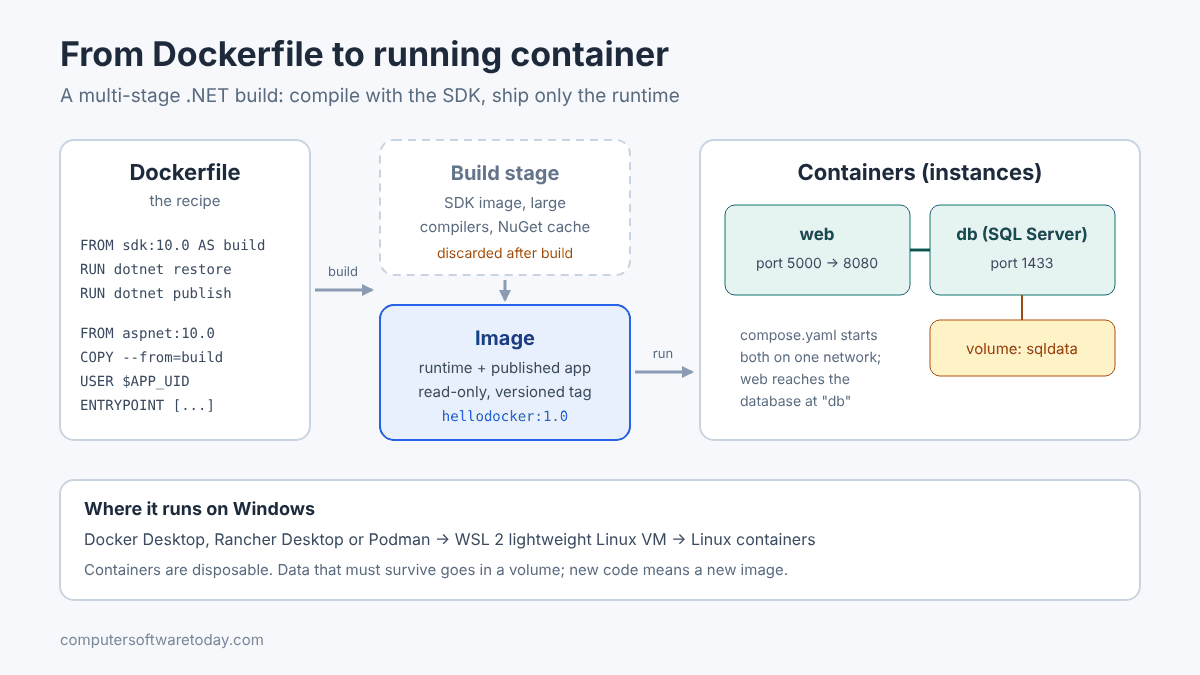
What is Docker Compose and when do you need it?
Docker Compose runs several containers together from one YAML file, such as your app plus its database. One command starts the whole stack and another tears it down. It’s built into current Docker as docker compose.
Add a compose.yaml next to the Dockerfile:
services:
  web:
    build: .
    ports:
      - "5000:8080"
    environment:
      - ConnectionStrings__Default=Server=db,1433;Database=App;User Id=sa;Password=${SA_PASSWORD};TrustServerCertificate=True
    depends_on:
      - db

  db:
    image: mcr.microsoft.com/mssql/server:2025-latest
    environment:
      - ACCEPT_EULA=Y
      - MSSQL_SA_PASSWORD=${SA_PASSWORD}
    ports:
      - "1433:1433"
    volumes:
      - sqldata:/var/opt/mssql

volumes:
  sqldata:
Put the password in a .env file beside it (SA_PASSWORD=Use-A-Strong-Pass1), and add .env to .gitignore. Then:
docker compose up -d --build
docker compose logs -f web
docker compose down          # keeps the sqldata volume
docker compose down -v       # also deletes the database volume
Notice the connection string uses Server=db, not localhost. Compose puts the services on a shared network where each service name is a hostname. Also, you don’t need the old version: "3.8" line at the top. The Compose file reference calls it obsolete, and Docker just prints a warning if it’s there. One caveat: depends_on only waits for the database container to start, not for SQL Server to be ready, so your app should retry its first connection.
What are the most common Docker beginner mistakes?
The usual ones are storing data inside containers without volumes, mixing up port mappings, using localhost between containers, baking secrets into images, and letting old images fill the disk.
- No volume for data. Delete a database container without a volume and the data is gone. Use named volumes for anything you care about.
- localhost inside a container means the container itself, not your PC or another container. Use the Compose service name, or
host.docker.internalto reach the Windows host from Docker Desktop. - Secrets in the Dockerfile. Anything in an
ENVor a copied file is readable by anyone with the image. Pass secrets at runtime. - Using
latestfor everything. Fine for experiments; for anything real, pin a version tag so builds are repeatable. - Project files on /mnt/c. If you build from inside WSL, keep the project in the Linux file system. Bind-mounting Windows folders is noticeably slower.
- No .dockerignore. Without it,
bin,obj,node_modulesand.gitget sent to every build. - Disk creep. Images and build cache add up fast. Run
docker system dfnow and then, anddocker system prunewhen it gets big (read its prompt first; it deletes stopped containers and unused data).
Bottom line
Start small. Run a database in a container instead of installing it, then containerize one simple app with a multi-stage Dockerfile, then add Compose when you have two services talking to each other. Check the Docker Desktop license if you’re at a larger company, and keep your project files in WSL. Once it clicks, you’ll stop installing database servers on your laptop, and you won’t miss them.
FAQ
Is Docker free on Windows?
Docker Engine is free and open source. Docker Desktop is free for personal use, education, non-commercial open source and small businesses with fewer than 250 employees and under $10 million in revenue; larger organizations and government entities need a paid subscription.
Do I need WSL 2 to use Docker on Windows?
For Linux containers on Windows 10 or 11, yes in practice: Docker Desktop, Rancher Desktop and Podman all use WSL 2 to run a lightweight Linux environment. Hardware virtualization must also be enabled in your firmware.
What’s the difference between an image and a container?
An image is a read-only template built from a Dockerfile. A container is a running instance of that image. You can start many containers from one image, and deleting a container doesn’t delete the image.
Why can’t my app container connect to my database container on localhost?
Inside a container, localhost refers to that container only. In Docker Compose, use the database service name (for example Server=db) as the hostname instead.
Can I run Windows containers instead of Linux containers?
Yes, on Windows 10 or 11 Pro or Enterprise, by switching Docker Desktop to Windows containers. Most developers don’t need them; they’re mainly for older .NET Framework applications.
How do I free up disk space used by Docker?
Run docker system df to see usage, then docker system prune to remove stopped containers, unused networks and dangling images. Add –volumes only if you’re sure you don’t need the data in unused volumes.
Featured image: Photo by Bernd Dittrich on Unsplash.