



You can get free, automatically renewing HTTPS on IIS by running win-acme (or its drop-in successor, simple-acme) against Let’s Encrypt. It finds your IIS sites, proves you control each domain over HTTP, installs the certificate with an SNI binding, and creates a daily renewal task. Plan for the coming change to 45-day certificates.
I use this setup on my own Windows Server VPS, where around 20 sites share one IIS instance. Below: installation, the first certificate, SNI with many sites, renewals, the Let’s Encrypt lifetime changes that start in 2027, and the problems you’re most likely to hit.
What are win-acme and Let’s Encrypt?
Let’s Encrypt is a free, automated certificate authority. win-acme is a Windows ACME client that requests its certificates and installs them into IIS. Between them, they replace buying and manually installing a certificate every year.
Let’s Encrypt issues domain-validated certificates through the ACME protocol. You prove control of a domain, usually by serving a token over HTTP on port 80, and you get a certificate that every mainstream browser trusts. There’s no fee, no account portal, and no human approval step.
win-acme (the program is wacs.exe) is the Windows client that most IIS admins have used for years. It reads your IIS bindings, handles validation, stores the certificate in the Windows certificate store, updates the HTTPS bindings, and schedules renewals.
There’s one development you should know about. win-acme’s original author has forked it as simple-acme, which he describes as “a backwards compatible, drop-in replacement.” He says he doesn’t expect further win-acme releases, and the last one was 2.2.9.1. simple-acme continues from there and adds features such as certificate profile selection. Everything in this guide applies to both, and for a new server I’d install simple-acme.
What do you need before you start?
You need a Windows Server running IIS, a site with an HTTP binding for each host name, DNS records that point those names at the server, and port 80 reachable from the internet.
- DNS. Every name you want on the certificate (
example.com,www.example.com) needs an A record, and an AAAA record if you use IPv6, pointing at this server. A stale AAAA record pointing somewhere else is a classic reason for validation to fail. - Host-name bindings. Each IIS site needs an HTTP binding with the host name filled in. win-acme builds its list of domains from these bindings.
- Port 80 open in Windows Firewall and in any cloud or VPS firewall. HTTP-01 validation always starts on port 80, even if your site will redirect everything to HTTPS later.
- An admin PowerShell session, because the tool changes IIS bindings and the machine certificate store.
How do you install win-acme on Windows Server?
Download the zip, extract it to a permanent folder such as C:\Tools\win-acme, and run wacs.exe as Administrator. There’s no installer. The renewal task points at that folder, so don’t run it from Downloads.
- Download the x64 “trimmed” build from win-acme.com, or the current release from simple-acme.com. The “pluggable” build is only needed if you use extra plugins, such as DNS validation for particular providers.
- Extract it to a permanent location:
New-Item -ItemType Directory -Path C:\Tools\win-acme -Force Expand-Archive .\win-acme.v2.2.9.1701.x64.trimmed.zip -DestinationPath C:\Tools\win-acme cd C:\Tools\win-acme .\wacs.exe - The first time you request a certificate, it asks for an email address and asks you to accept the Let’s Encrypt subscriber agreement.
Keep that folder backed up along with C:\ProgramData\win-acme, which holds the renewal definitions and logs. If you ever move servers, you’ll want both.
How do you issue your first certificate for an IIS site?
Run wacs.exe, choose N to create a certificate with default settings, pick the IIS site, accept the host names it finds, and let it validate, install, and bind the certificate on port 443.
- At the main menu, press N (“Create certificate (default settings)”).
- Pick the site from the numbered list of IIS sites.
- Confirm which host-name bindings to include. Usually that’s all of them, for example
example.comandwww.example.com. - win-acme places the validation token, Let’s Encrypt fetches it over port 80, and the certificate is issued.
- It imports the certificate into the Windows store and creates or updates an HTTPS binding for each host name with SNI enabled.
Check the result from PowerShell. SNI bindings show up as hostnameport entries:
netsh http show sslcert | Select-String "Hostname:port"
Get-WebBinding -Protocol https
For scripting or rebuilding a server, the same thing can run unattended. Here’s an example for IIS site ID 3:
.\wacs.exe --source iis --siteid 3 --installation iis `
  --emailaddress admin@example.com --accepttos
Once HTTPS works, add a redirect from HTTP to HTTPS (IIS URL Rewrite, or UseHttpsRedirection() in ASP.NET Core). Make sure the redirect doesn’t break validation. Let’s Encrypt does follow redirects to HTTPS, but a broken rewrite rule on /.well-known/acme-challenge/ will cause failures.

How does SNI let many HTTPS sites share one IP address?
With Server Name Indication, the browser sends the host name during the TLS handshake, so IIS can choose the right certificate for each site on a shared IP and port 443. win-acme creates SNI bindings by default.
Before SNI, every HTTPS site needed its own IP address, because the server had to pick a certificate before it knew which site the browser wanted. Today every supported browser sends SNI, so one IP can serve dozens of HTTPS sites, each with its own certificate.
On a multi-site server I follow three rules:
- One certificate per site, covering that site’s names (apex and www). Don’t combine unrelated sites into one big certificate. If one domain’s DNS breaks, the renewal fails for every name on it.
- Every 443 binding has a host name and “Require Server Name Indication” checked. An old IP-based binding on
*:443with no host name acts as a catch-all and serves its certificate to any browser that doesn’t match another binding. That produces confusing “wrong certificate” reports. - Keep host names identical between the HTTP binding, the HTTPS binding, and DNS. A name missing from the HTTP bindings won’t make it onto the certificate.
Rate limits are rarely an issue for a normal server. Let’s Encrypt allows 50 certificates per registered domain every 7 days and 5 duplicate certificates for the exact same set of names every 7 days. While you’re experimenting, the duplicate limit is the one you’ll hit, so use the staging environment for testing.
How does automatic renewal work, and how do you test it?
win-acme creates a Windows scheduled task that runs daily (9:00 AM as SYSTEM by default) and renews any certificate that’s due. Renewal reuses the validation and installation choices you made the first time.
According to the win-acme renewal docs, a certificate is renewed when it reaches the configured age (55 days by default), when the site’s host names change, or when the CA signals through ACME Renewal Information (ARI) that it should be renewed early. Check the task and force a test renewal:
Get-ScheduledTask -TaskName "win-acme*" | Format-List TaskName, State
Get-ScheduledTaskInfo -TaskName "win-acme*" | Format-List LastRunTime, LastTaskResult

cd C:\Tools\win-acme
.\wacs.exe --renew --force --verbose
Run the forced renewal once after setup, and again after any change to the server: firewall rules, rewrite rules, or a new CDN in front of the site. A renewal that worked in March and fails in May will usually trace back to one of those changes.
Also note that Let’s Encrypt stopped sending expiration reminder emails in June 2025. Nobody will warn you anymore. Set up your own check, even if it’s just an uptime monitor that alerts on certificate expiry.
What is changing with Let’s Encrypt certificate lifetimes?
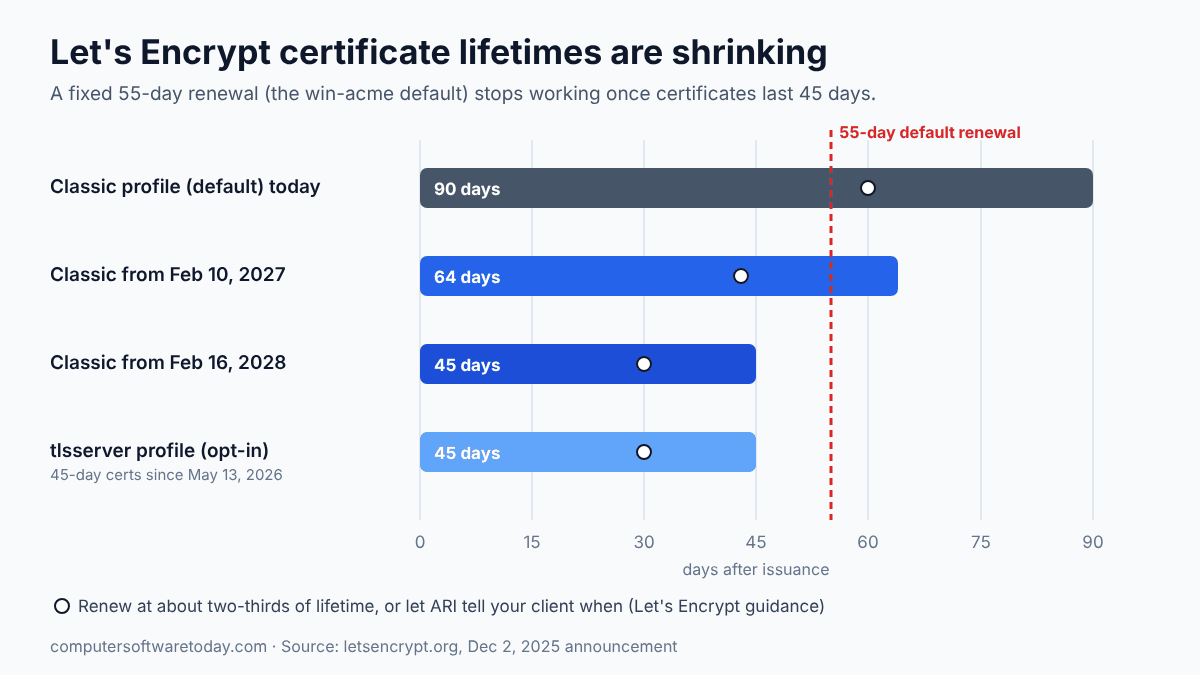
Let’s Encrypt is cutting certificate lifetimes from 90 days to 64 days on February 10, 2027, and to 45 days on February 16, 2028. Authorization reuse also drops sharply, so fixed 55-day renewal schedules have to change.
Here’s the timeline from the Let’s Encrypt announcement:
| Date | Profile | Certificate lifetime | Authorization reuse |
|---|---|---|---|
| Today (Oct 2026) | classic (default) | 90 days | 30 days |
| May 13, 2026 | tlsserver (opt-in) | 45 days | n/a (opt-in early adopters) |
| February 10, 2027 | classic | 64 days | 10 days |
| February 16, 2028 | classic | 45 days | 7 hours |
The changes apply at your next renewal after each date. Let’s Encrypt recommends using ARI so the CA tells your client when to renew. If your client doesn’t support ARI, renew at about two-thirds of the certificate’s lifetime. A fixed 60-day interval won’t work anymore.
What that means for IIS:
- With 64-day certificates, a 55-day renewal still works but leaves only nine days to notice and fix a failure. I’d lower
ScheduledTask.RenewalDaysinsettings.jsonto around 40. - With 45-day certificates, a 55-day renewal means the certificate expires before renewal is even attempted. Set it to about 30, or move to simple-acme, which also renews when a certificate has fewer than 7 days of validity left and honors ARI.
- The 7-hour authorization reuse means every renewal will revalidate. Port 80 and your validation path must work every single time, not just on the day you set things up.
How do you troubleshoot common win-acme errors?
Most failures come down to validation: Let’s Encrypt can’t reach the token over port 80. After that, the usual causes are binding conflicts, rate limits, and old win-acme versions that trip over ARI.
Start with the log. It’s under C:\ProgramData\win-acme\ in a folder named after the ACME server. Then rerun with --verbose.
| Symptom | Likely cause | Fix |
|---|---|---|
| Validation fails, timeout or connection refused | Port 80 blocked at Windows Firewall or provider firewall | Open TCP 80 inbound. Validation needs it even if the site is HTTPS-only. |
| Validation fails with 404 | A rewrite rule, or the app itself, intercepts /.well-known/acme-challenge/ |
Exclude that path from rewrite rules and app routing |
| Validation fails for one name only | A stale AAAA record, or DNS pointing at an old server or a CDN | Fix DNS. With Cloudflare-style proxies, make sure port 80 reaches the origin. |
| Browser shows another site’s certificate | A non-SNI *:443 binding acting as a catch-all |
Add host names and “Require SNI” to every 443 binding |
| “Could not validate ARI ‘replaces’ field” | Known renewal error reported with win-acme 2.2.9.1 | Replace it with simple-acme, which is a drop-in replacement |
| “too many certificates already issued” | You hit the duplicate-certificate rate limit while testing | Wait out the 7-day window and use staging for experiments |
The ARI error isn’t theoretical. It came up on the Let’s Encrypt community forum in December 2025 with win-acme 2.2.9.1, and the suggested fix was switching to simple-acme. With no new win-acme releases expected, that’s the direction I’d go anyway.
Bottom line
Paying for basic DV certificates on IIS made sense ten years ago. It doesn’t now. win-acme, and from here on simple-acme, will issue, bind, and renew Let’s Encrypt certificates for every site on a server with SNI on one IP, and once it’s set up you rarely touch it. The thing to plan for is the calendar. Certificates get shorter in February 2027 and again in February 2028, and every renewal will need to revalidate. Check your renewal settings now, keep port 80 working, run a forced renewal after any server change, and add your own expiry monitoring now that Let’s Encrypt no longer emails you.
FAQ
Is win-acme still maintained?
Its author has moved development to simple-acme, a backwards-compatible, drop-in replacement, and doesn’t expect further win-acme releases. The last win-acme version is 2.2.9.1.
How long are Let’s Encrypt certificates valid?
90 days today with the default profile. That drops to 64 days on February 10, 2027 and to 45 days on February 16, 2028. An opt-in 45-day profile has existed since May 2026.
Can I host many HTTPS sites on one IP address in IIS?
Yes. Use SNI bindings with a host name on each site’s 443 binding. win-acme creates SNI bindings automatically, and every current browser supports SNI.
Does Let’s Encrypt validation need port 80 open?
For HTTP-01 validation, which win-acme uses by default for IIS, yes. If port 80 can’t be opened, use DNS-01 validation with a supported DNS provider plugin.
How do I test that win-acme renewal works?
Run wacs.exe --renew --force --verbose from the install folder. Then check the scheduled task’s last run result in Task Scheduler.
Will Let’s Encrypt email me before my certificate expires?
No. Let’s Encrypt ended expiration notification emails in June 2025. Use your own monitoring to alert on certificates that are close to expiry.
Featured image: Photo by Towfiqu barbhuiya on Unsplash.