



To host an ASP.NET Core app on IIS, you install IIS and the .NET Hosting Bundle on the server, create an app pool set to “No Managed Code,” point a site at your published folder, and let the generated web.config load the ASP.NET Core Module. Below are the commands for each step, plus fixes for 500.30 and 502.5 errors.
I host around 20 websites and several ASP.NET Core apps on my own Windows Server VPS with IIS. The steps below are the ones I actually follow, in the order I follow them. Everything here applies to .NET 8 and .NET 10. Since .NET 8 reaches end of support on November 10, 2026, any new setup should use the .NET 10 Hosting Bundle.
How does ASP.NET Core run on IIS?
IIS doesn’t run ASP.NET Core directly. A native IIS module, the ASP.NET Core Module (ANCM), either loads your app inside the IIS worker process or starts it as a separate Kestrel process and forwards requests to it.
That’s the main difference from classic ASP.NET on .NET Framework. There’s no System.Web and no integrated pipeline. IIS handles the parts it’s good at, like bindings, TLS certificates, host headers, Windows authentication, and process management, and then hands each request to ANCM. Your app does the rest.
Two pieces have to be on the server for this to work:
- The ASP.NET Core Module (
aspnetcorev2.dll), registered as a global module in IIS. - The .NET and ASP.NET Core runtimes, unless you publish your app self-contained.
The Hosting Bundle installs both. Microsoft’s full reference is Host ASP.NET Core on Windows with IIS. It’s long but worth bookmarking.
Should you use in-process or out-of-process hosting?
Use in-process, the default since ASP.NET Core 3.0, unless you have a specific reason not to. It runs your app inside w3wp.exe and gives noticeably higher throughput than proxying to Kestrel.

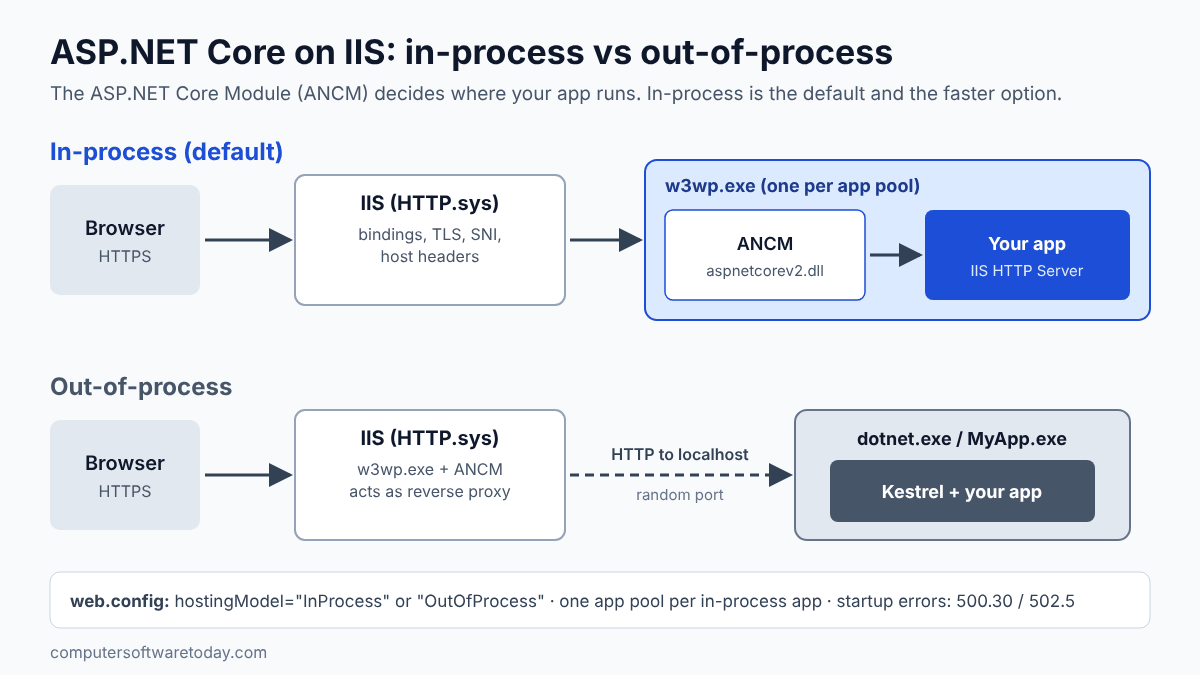
With in-process hosting, ANCM loads the .NET runtime into the IIS worker process and calls your Program.Main. Requests go from IIS to your app with no network hop in between. Microsoft’s docs state that in-process hosting “delivers significantly higher request throughput” than out-of-process. The trade-off is that each in-process app needs its own application pool, and you can’t load an app published as a single-file executable.
With out-of-process hosting, ANCM starts dotnet MyApp.dll (or MyApp.exe) as a separate process running Kestrel, and IIS acts as a reverse proxy to it on a random localhost port. The module restarts the process if it crashes. I use out-of-process only when there’s a reason to: a single-file publish, or a case where I want the app’s process lifetime separate from IIS recycling.
The setting lives in your project file and ends up in web.config:
<PropertyGroup>
  <AspNetCoreHostingModel>InProcess</AspNetCoreHostingModel>
</PropertyGroup>
How do you install IIS and the .NET Hosting Bundle?
Install the Web Server role first, then the Hosting Bundle for your .NET version, then restart IIS. If you install them in the reverse order, re-run the bundle installer to repair it.
Open PowerShell as Administrator on the server.
- Install IIS with management tools and Application Initialization (you’ll want that later for warm starts):
Install-WindowsFeature -Name Web-Server, Web-AppInit -IncludeManagementTools - Download the Hosting Bundle from the .NET 10 download page. It’s listed under the ASP.NET Core Runtime as “Hosting Bundle.” Get the latest patch version.
- Run it quietly. If you’ll never host 32-bit apps, skip the x86 runtimes:
.\dotnet-hosting-10.0.x-win.exe /quiet /norestart OPT_NO_X86=1 - Restart IIS so it picks up the new module and the updated PATH:
net stop was /y net start w3svc - Verify that both the runtime and the module are present:
dotnet --list-runtimes
Import-Module WebAdministration
Get-WebGlobalModule | Where-Object Name -like "AspNetCore*"
The Hosting Bundle documentation lists the other installer switches, such as OPT_NO_RUNTIME=1 for servers that only run self-contained apps. One habit worth keeping: every time Microsoft ships a .NET patch, update the Hosting Bundle on the server too. A framework-dependent app runs on the runtime installed on the server, so that’s where the security fixes have to land.
How should you configure the IIS application pool?
Give every ASP.NET Core app its own pool, set the .NET CLR version to “No Managed Code,” keep ApplicationPoolIdentity, and turn on AlwaysRunning with no idle timeout for apps that should respond instantly.
Import-Module WebAdministration
New-WebAppPool -Name "MyApp"
Set-ItemProperty IIS:\AppPools\MyApp -Name managedRuntimeVersion -Value ""
Set-ItemProperty IIS:\AppPools\MyApp -Name startMode -Value "AlwaysRunning"
Set-ItemProperty IIS:\AppPools\MyApp -Name processModel.idleTimeout -Value "00:00:00"
Set-ItemProperty IIS:\AppPools\MyApp -Name processModel.loadUserProfile -Value $true
Here’s why each one matters:
- No Managed Code (an empty
managedRuntimeVersion). ASP.NET Core doesn’t use the .NET Framework CLR that this setting refers to. Microsoft calls it “optional but recommended,” and leaving it set just confuses whoever looks at the server next. - One pool per app. This is required for in-process hosting. If two in-process apps share a pool, the second one fails with a 500.35 error.
- ApplicationPoolIdentity. IIS creates a virtual account named
IIS AppPool\MyApp. Grant that account permissions instead of running the pool as LocalSystem. - Load User Profile = True. Without it, ASP.NET Core’s data protection keys can end up held in memory only, so every recycle signs your users out and invalidates antiforgery tokens.
- AlwaysRunning and idle timeout 0. The default 20-minute idle timeout shuts a quiet app down, and the next visitor waits for a cold start. On a low-traffic business site, that first visitor is usually the customer.
Leave “Enable 32-Bit Applications” set to False for normal 64-bit apps. If you get it wrong, you’ll see a 500.32 or a 502.5 with error code 0x800700c1.
How do you create the site and set folder permissions?
Create a folder, create the site bound to your host name with the new pool, enable preload, and grant the pool identity read access to the site folder and write access to the logs folder.
New-Item -ItemType Directory -Path C:\sites\MyApp\logs -Force
New-Website -Name "MyApp" -PhysicalPath "C:\sites\MyApp" `
  -ApplicationPool "MyApp" -HostHeader "app.example.com" -Port 80
Set-ItemProperty "IIS:\Sites\MyApp" -Name applicationDefaults.preloadEnabled -Value $true

icacls C:\sites\MyApp /grant "IIS AppPool\MyApp:(OI)(CI)RX"
icacls C:\sites\MyApp\logs /grant "IIS AppPool\MyApp:(OI)(CI)M"
Start with an HTTP binding on port 80. Add HTTPS once DNS points at the server. On my server I use win-acme with Let’s Encrypt for that, and it creates the 443 binding with SNI for you. With many sites on one IP address, SNI and host headers are what let IIS pick the right site and certificate.
What does the web.config for ASP.NET Core look like?
When you publish, the SDK generates a web.config that registers the AspNetCoreModuleV2 handler and tells it how to start your app. You rarely write it by hand, but you should know what each attribute does.
<?xml version="1.0" encoding="utf-8"?>
<configuration>
  <location path="." inheritInChildApplications="false">
    <system.webServer>
      <handlers>
        <add name="aspNetCore" path="*" verb="*"
             modules="AspNetCoreModuleV2" resourceType="Unspecified" />
      </handlers>
      <aspNetCore processPath="dotnet" arguments=".\MyApp.dll"
                  stdoutLogEnabled="false" stdoutLogFile=".\logs\stdout"
                  hostingModel="inprocess">
        <environmentVariables>
          <environmentVariable name="ASPNETCORE_ENVIRONMENT" value="Production" />
        </environmentVariables>
      </aspNetCore>
    </system.webServer>
  </location>
</configuration>
For a self-contained app, processPath is .\MyApp.exe and arguments is empty. If you keep your own web.config in the project (for rewrite rules or security headers), the publish step transforms it rather than replacing it.
Microsoft is blunt on one point, and I agree with it: never delete web.config from a production deployment. Without it, IIS may serve files like MyApp.deps.json and appsettings.json as static content. That’s a quick way to leak a connection string.
How do you deploy updates without locked-file errors?
Publish locally, then drop an app_offline.htm file into the site folder. ANCM shuts the app down gracefully and releases the DLLs. Copy the new files, then delete app_offline.htm.
On the build machine:
dotnet publish .\src\MyApp\MyApp.csproj -c Release -o .\publishOn the server, a small PowerShell script handles the rest:
$site = "C:\sites\MyApp"
Set-Content -Path "$site\app_offline.htm" -Value "<h1>Updating, back in a minute.</h1>"
Start-Sleep -Seconds 3

robocopy .\publish $site /MIR /XF app_offline.htm appsettings.Production.json /XD logs

Remove-Item "$site\app_offline.htm"
The /XF and /XD exclusions matter. /MIR deletes anything at the destination that isn’t in the source, so without them it would delete app_offline.htm partway through the copy, wipe your logs, and remove any server-only settings file. My rule: keep production secrets in a file or environment variable that lives only on the server, and exclude it from the mirror.
If you’d rather click than script, Visual Studio’s Web Deploy publishing places app_offline.htm automatically. Either way, check the site afterward with a real request, not just “the copy finished.”
How do you fix HTTP Error 500.30 and 502.5?
500.30 means an in-process app crashed while starting. 502.5 means an out-of-process app’s process failed to start. For both, run the app from the command line or enable stdout logging to see the real exception.
The browser error page tells you almost nothing. The real exception is somewhere else, so go and get it:
- Run the app by hand from the site folder. Nine times out of ten the exception prints right there:
cd C:\sites\MyApp
dotnet .\MyApp.dll
If it starts and answers on
http://localhost:5000, the app itself is fine and the problem is in the IIS configuration or permissions. - Check Event Viewer under Windows Logs, Application. Filter on the source “IIS AspNetCore Module V2.”
- Turn on stdout logging by setting
stdoutLogEnabled="true"in web.config, make sure the pool identity can write tologs, then make a request. Switch it off afterwards. Microsoft warns that these logs have no size or count limit.
The causes I see most often, and the fixes, according to Microsoft’s IIS troubleshooting guide and my own experience:
| Error | Usual cause | Fix |
|---|---|---|
| 500.30 In-Process Start Failure | Exception in startup code (bad connection string, missing config, unreachable database or Key Vault), or the target runtime isn’t installed | Run dotnet MyApp.dll and read the exception, then install the matching Hosting Bundle |
| 500.31 Failed to Find Native Dependencies | The required Microsoft.NETCore.App or Microsoft.AspNetCore.App version isn’t on the server |
Install that runtime version or publish self-contained |
| 502.5 Process Failure | Out-of-process app can’t start: missing runtime, wrong path in web.config, or a startup crash | Check Event Viewer and stdout log, verify processPath and arguments |
| 500.19 (0x8007000d) | IIS doesn’t recognize the aspNetCore section because the module isn’t installed |
Install or repair the Hosting Bundle, then restart IIS |
| 500.35 | Two in-process apps in one app pool | Give each app its own pool |
| 500.32 / 502.5 with 0x800700c1 | Bitness mismatch between app and pool | Fix “Enable 32-Bit Applications” or republish for x64 |
| 500.37 | App didn’t start within the startup time limit (120 seconds by default) | Find the slow startup work, and stagger restarts on busy servers |
One more classic: the app works for an administrator running it by hand but fails under IIS. That’s almost always permissions. The pool identity can’t read a certificate, a folder, or a SQL Server login that your own account can. Grant IIS AppPool\MyApp what it needs, or use a SQL login meant for the app.
Bottom line
IIS is still a perfectly good home for ASP.NET Core, especially if you already run Windows Server and SQL Server and want TLS, host headers, and process management in one place. The setup that works is short: Hosting Bundle, one “No Managed Code” pool per app, in-process hosting, AlwaysRunning, and a deploy script that uses app_offline.htm. When something breaks, go straight to the real exception. Run the DLL by hand, or check the event log and stdout. Don’t guess based on the error page. And keep the Hosting Bundle patched, because on a framework-dependent server that’s where your security updates live.
FAQ
Do I need the .NET Hosting Bundle to run ASP.NET Core on IIS?
Yes, in practice. It installs the ASP.NET Core Module that IIS needs. A self-contained app can skip the runtimes, but the server still needs the module.
What is the difference between in-process and out-of-process hosting?
In-process runs your app inside the IIS worker process (w3wp.exe) for better throughput. Out-of-process runs it in a separate Kestrel process, with IIS acting as a reverse proxy.
What does HTTP Error 500.30 mean?
It means an in-process ASP.NET Core app failed during startup. Run dotnet YourApp.dll in the site folder, or enable stdout logging, to see the actual exception.
Why should the app pool use “No Managed Code”?
ASP.NET Core doesn’t use the .NET Framework CLR that this setting controls. Microsoft recommends “No Managed Code” for ASP.NET Core app pools.
Can multiple ASP.NET Core apps share one IIS app pool?
Not with in-process hosting. Each in-process app needs its own pool, or you get error 500.35. Separate pools also keep one app’s crash from taking down another.
How do I deploy without “file in use” errors?
Put an app_offline.htm file in the site root before copying. ASP.NET Core shuts the app down and releases its files. Delete the file when the copy finishes.
Featured image: Photo by Brett Sayles on Pexels.