


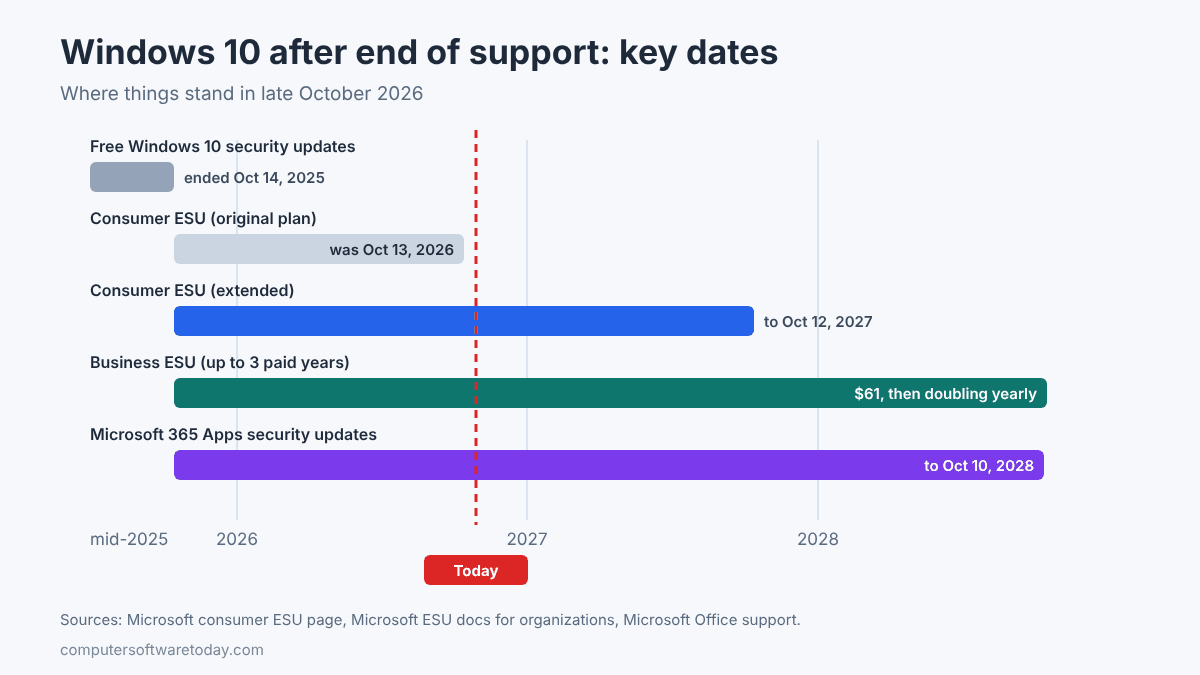
Windows 10 reached end of support on October 14, 2025. Free monthly security updates stopped unless you enroll in Extended Security Updates (ESU). Microsoft has since extended consumer ESU to October 12, 2027. Your realistic options now: enroll in ESU, upgrade to Windows 11, replace the PC, or move an older machine to Linux or ChromeOS Flex.
A year after the deadline, plenty of Windows 10 machines are still running. Many people were planning around an October 2026 cutoff for the consumer ESU program and may not have noticed that the date moved. Here’s where things stand at the end of October 2026, what each option really costs, and how I’d decide.
What actually ended when Windows 10 support ended?
On October 14, 2025, Microsoft stopped providing free security updates, feature updates and technical support for mainstream Windows 10 editions. The PC keeps working, but newly discovered vulnerabilities don’t get patched unless the device is enrolled in ESU.
Nothing switched off that day. Windows 10 still boots, your apps still open, and your files are where you left them. That’s exactly why it’s easy to put off. The risk builds up gradually as unpatched vulnerabilities accumulate and attackers aim at machines they know won’t be fixed.
A few things continue for a while on their own schedules:
- Microsoft 365 apps. Microsoft’s Office support page says Microsoft 365 Apps get security updates on Windows 10 through October 10, 2028, but no new features. Microsoft still recommends moving to Windows 11.
- OneDrive keeps getting updates on Windows 10 version 22H2 through the same October 2028 date.
- LTSC editions, the long-term editions sold to businesses and device makers, follow their own lifecycles. Windows 10 IoT Enterprise LTSC 2021, for example, has an extended end date of January 2032. These aren’t editions you can switch a home PC to.
Keep in mind that a patched Office suite on an unpatched operating system is still an unpatched machine.
What are Extended Security Updates for consumers, and when do they end now?
Consumer ESU delivers critical and important security updates to Windows 10 version 22H2 home PCs. Microsoft extended it by a year, and coverage now runs through October 12, 2027. Enrolled devices continue automatically.
When Microsoft launched the consumer program, it covered one year, to October 13, 2026. In June 2026, as BleepingComputer reported, Microsoft quietly extended it, acknowledging to the publication that moving to a new PC takes time for many people. Microsoft’s own consumer ESU page now says you can enroll any time until the program ends on October 12, 2027.
The enrollment options listed there:
- No additional cost if you sync your PC settings (Windows Backup) to a Microsoft account.
- Redeem 1,000 Microsoft Rewards points.
- A one-time purchase of $30 USD, or the local equivalent, plus tax.
One license covers up to 10 devices. The requirements: Windows 10 version 22H2 (Home, Pro, Pro Education or Workstations), current updates installed, and a Microsoft account with administrator rights that isn’t a child account. Kiosk-mode devices, devices joined to Active Directory or Microsoft Entra, and MDM-managed devices are excluded. Microsoft notes that options and timing can vary by region. In the European Economic Area, BleepingComputer reports that enrollment is free as long as you keep signing in with a Microsoft account.
To enroll, go to Settings > Update & Security > Windows Update and look for the ESU enrollment link. If it isn’t showing, make sure you’re on 22H2 and fully updated first.
What does ESU cost for businesses?
Organizations pay per device: $61 for the first year, with the price doubling each following year, for a maximum of three years after end of support. Purchases are cumulative, so joining late means paying for the years you missed.
Microsoft’s ESU documentation for organizations sets the year-one price at $61 per device and says it doubles every consecutive year. That works out to roughly $122 for year two and $244 for year three, or about $427 per device if you go the full three years. You buy whole years only. If you start in year two, you pay for year one too.
There’s an exception worth knowing about. Windows 10 virtual machines in Windows 365, Azure Virtual Desktop and Azure VMs get ESU at no additional cost. Windows 10 PCs used to connect to Windows 365 Cloud PCs are also covered while the subscription is active.
For a small business, the numbers usually point one way. Year one is affordable insurance while you plan. By year three, you’re paying a meaningful share of a new PC’s price, per machine, to keep an old one patched.
How do Windows 10 users’ options compare?
There are five realistic paths: ESU, a supported upgrade to Windows 11, an unsupported Windows 11 install, a new PC, or a different operating system. They differ mainly in cost, effort and how long they keep you secure.
| Option | Cost | Secure until | Effort | Best for |
|---|---|---|---|---|
| Consumer ESU | Free (settings sync or Rewards) or $30 | October 12, 2027 | Low | Buying time |
| Business ESU | $61, then doubling yearly | Up to three years after end of support | Low to medium | Organizations mid-migration |
| Upgrade to Windows 11 (supported hardware) | Free | Ongoing | Low | PCs that pass the compatibility check |
| Windows 11 on unsupported hardware | Free | Not guaranteed | Medium | Tinkerers who accept the risk |
| New Windows 11 PC | Price of the PC | Ongoing | Medium (migration) | Old or slow machines |
| Linux or ChromeOS Flex | Free | Ongoing | Medium to high | Web-centric use, older hardware |

Can you upgrade to Windows 11 on unsupported hardware?
Technically yes, often with a registry change or a modified installer. But Microsoft says unsupported PCs aren’t entitled to updates and aren’t guaranteed to receive security updates, which defeats the point of leaving Windows 10.
First, check whether your PC is actually unsupported. Run the PC Health Check app, or look in Windows Update. The usual blockers are TPM 2.0, Secure Boot and the processor list. TPM and Secure Boot are often just turned off in the firmware settings, so check there before you assume the hardware is too old.
If the CPU really isn’t on the list, workarounds exist, and many people run Windows 11 that way. But read Microsoft’s support page for devices that don’t meet the requirements before you try it. It says these PCs “won’t be entitled to receive updates” and aren’t guaranteed security updates. It also says damage caused by incompatibility isn’t covered by the manufacturer’s warranty, and that a desktop watermark and Settings notice may appear. If you change your mind, the rollback window is 10 days.
My view: on a hobby machine, go ahead and experiment. On a PC someone in your family uses for banking, or a machine in a business, I wouldn’t build security on something the vendor says it doesn’t guarantee to patch.
Is Linux or ChromeOS Flex a good alternative?
For an older PC used mainly for web browsing, email and documents, yes. Linux distributions such as Linux Mint and Zorin OS, or Google’s ChromeOS Flex, are free and keep getting updates on hardware Windows 11 won’t support.
ChromeOS Flex turns a PC into something close to a Chromebook. Google’s ChromeOS Flex requirements call for an Intel or AMD 64-bit processor, at least 4 GB of RAM, 16 GB of storage and the ability to boot from USB. Processors and graphics from 2012 or earlier are unlikely to work. Google keeps a list of certified models, and each one has an end-of-support year. Check yours before you wipe anything. It’s a good fit for someone who lives in a browser. It’s a poor fit for anyone who needs desktop Windows software.
Linux gives you more flexibility. Linux Mint and Zorin OS are the usual picks for people coming from Windows, because their desktops feel familiar. Both can run from a USB stick so you can try them before installing. The trade-offs are real: no native Microsoft Office (the web versions work), some games and specialist apps won’t run, and printers and scanners occasionally need extra effort. For a developer, Linux is home turf. For a relative who just needs a browser and a printer, it can work very well once it’s set up.
Whichever you choose, back up everything first. Both install paths normally erase the drive.
What are the risks of staying on Windows 10 without updates?
The main risk is unpatched security vulnerabilities that attackers can exploit through web pages, documents or network services. Over time you’ll also see software and drivers drop Windows 10 support, and compliance problems for businesses.
- Security. Every month, Microsoft fixes vulnerabilities in supported Windows versions. Once those fixes are public, attackers can study them and go after machines that didn’t get the patch. An unenrolled Windows 10 PC falls further behind every month.
- Software support. Browsers, antivirus products and business apps eventually set Windows 11 as the minimum. When that happens to an app you depend on, you’ll have to move on that app’s schedule instead of your own.
- Compliance. If you handle payment cards, health data or client information, an unsupported operating system can be a finding in an audit or a problem with your cyber insurance.
- Hardware. New peripherals and drivers increasingly target Windows 11 only.
If a Windows 10 machine truly can’t be replaced, say it runs one legacy program, reduce the risk. Enroll it in ESU while you can, keep it off the internet if possible, use a standard (non-admin) account, and keep the browser and remaining apps updated.
Bottom line
The extension to October 2027 gives home users one more year, and the free enrollment options make ESU an easy call for any eligible PC. Treat that year as time to plan, not to forget. If the PC passes Windows 11’s check, upgrade. If it doesn’t, decide whether it’s worth replacing or whether Linux or ChromeOS Flex fits how it’s used. Don’t let October 2027 come around with the same machine and the same plan you had in 2025.
FAQ
Is Windows 10 still getting security updates in late 2026?
Only through Extended Security Updates. Free updates ended October 14, 2025. Consumer ESU now runs through October 12, 2027, and organizations can buy up to three years of ESU from the end of support.
How do I get Windows 10 ESU for free?
Enroll from Windows Update while signed in with a Microsoft account and choose to sync your PC settings, or redeem 1,000 Microsoft Rewards points. Otherwise there’s a one-time $30 option. One license covers up to 10 devices.
I enrolled in ESU in 2025. Do I need to do anything for the extension?
No. According to Microsoft and press reports, devices already enrolled continue receiving updates automatically through October 12, 2027.
Will Microsoft Office keep working on Windows 10?
Yes. Microsoft 365 Apps continue to work and receive security updates on Windows 10 through October 10, 2028, though Microsoft recommends upgrading to Windows 11 and won’t add new features there.
Is it safe to install Windows 11 on an unsupported PC?
It usually runs, but Microsoft says unsupported devices aren’t entitled to updates and aren’t guaranteed security updates, and incompatibility damage isn’t covered by warranty. It’s fine for experiments and a poor choice for important machines.
What’s the easiest alternative for an old PC that can’t run Windows 11?
For mostly web-based use, ChromeOS Flex is the simplest switch, as long as the model is on Google’s certified list. For more flexibility, Linux Mint or Zorin OS feel familiar to Windows users and can be tried from a USB stick first.
Featured image: Photo by Douglas Lopes on Unsplash.