



WSL 2 (Windows Subsystem for Linux) runs a real Linux kernel in a lightweight virtual machine on Windows. You get Ubuntu or another distro next to your Windows apps, without dual booting. This guide covers installing it, choosing a distro, keeping file access fast, networking, GPU support, VS Code, and fixes for the usual errors.
I spend most of my time on Windows. My production servers run Windows Server and IIS, and a lot of my code is .NET. But plenty of tooling assumes Linux: shell scripts, Docker images, Node and Python projects, deployment tools. WSL 2 is how I work with those without keeping a second machine around. Once you know where the sharp edges are, it’s one of the better things Microsoft has shipped for developers.
What is WSL 2 and how is it different from WSL 1?
WSL 2 runs a genuine Linux kernel inside a managed Hyper-V-based virtual machine. WSL 1 translated Linux system calls into Windows calls. WSL 2 gives you full system-call compatibility and much faster Linux file operations.
WSL 1 is still around, but WSL 2 is the default for new installs and the one you want for development. Docker, systemd and other tools that need a real kernel only work under WSL 2. The main case for WSL 1 is a project you must keep on the Windows file system and work on from Linux tools, because WSL 1 crosses that boundary faster.
| WSL 1 | WSL 2 | |
|---|---|---|
| Architecture | Translation layer (no Linux kernel) | Real Linux kernel in a lightweight VM |
| System-call compatibility | Partial | Full |
| Speed in the Linux file system | Slower | Much faster |
| Speed on Windows files (/mnt/c) | Faster | Slower |
| Docker and systemd | No | Yes |
| GPU compute and Linux GUI apps | No | Yes |
WSL itself is now open source. Microsoft announced on May 19, 2025 that the WSL command-line tools, service and Linux-side daemons were published on GitHub. A few pieces, including the WSL 1 kernel driver, stay closed. That doesn’t change daily use, but bugs now get fixed in the open.
How do you install WSL 2 on Windows 11?
Open PowerShell as administrator, run wsl --install, and restart. Windows enables the required components, installs the WSL 2 platform and Ubuntu, and then asks you to create a Linux username and password.
According to Microsoft’s install guide, this works on Windows 11 and on Windows 10 version 2004 (build 19041) or later. The steps:
- Confirm hardware virtualization is enabled (Task Manager, Performance tab, CPU, “Virtualization: Enabled”).
- In an elevated PowerShell window:
wsl --install - Restart Windows.
- When Ubuntu opens, create your Linux user. This account is separate from your Windows login. Its password is what
sudoasks for. - Update the distro:
sudo apt update && sudo apt upgrade -y - Back in PowerShell, check that it’s running as version 2:
wsl --list --verbose
If wsl --install only prints help text, WSL is already partly installed. Use wsl --install -d Ubuntu to add a distro directly. If a download hangs at 0%, Microsoft suggests adding --web-download.
Which Linux distro should you choose?
Pick Ubuntu unless you have a reason not to. It’s the default, it has the most documentation, and most tutorials and Docker examples assume it. Use whatever distro matches your production servers if that’s different.
To see what’s available and install another:
wsl --list --online
wsl --install -d Debian
wsl --set-default Debian      # make it the one "wsl" opens
wsl -d Ubuntu                 # open a specific distro
You can run several distros side by side. Each one is its own virtual disk with its own packages and users. That’s handy for testing a script on Debian and Ubuntu, or for keeping a clean distro for one project. You can also back one up or move it:
wsl --export Ubuntu D:\backup\ubuntu.tar
wsl --import Ubuntu-Test D:\wsl\ubuntu-test D:\backup\ubuntu.tar
Before you upgrade a distro to a new release or try something risky, export it first. It takes a minute and makes the risk free to undo.
Where should you store project files for good performance?
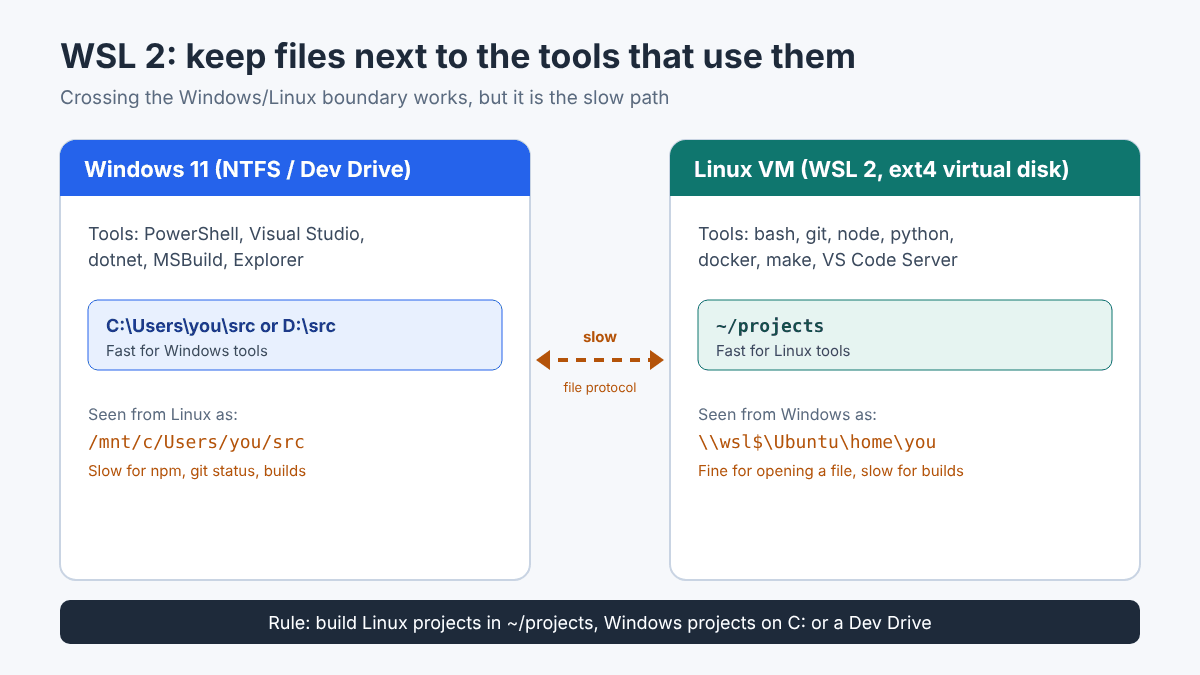
Store projects in the file system of the tools you use to build them. Projects you build with Linux tools go in your Linux home directory (~/projects). Projects you build with Windows tools go on a Windows drive.
This is the single biggest performance factor in WSL 2, and Microsoft says so plainly in its guide to working across file systems. Your Windows drives show up inside Linux as /mnt/c, /mnt/d and so on, and that works. But every file operation crosses a VM boundary through a network file protocol. An npm install, git status or build that touches thousands of small files can be many times slower on /mnt/c than in ~.
Practical rules I follow:
- Clone Linux-side repositories inside WSL:
cd ~ && mkdir projects && cd projects && git clone ... - To see those files from Windows, run
explorer.exe .from the Linux folder, or type\\wsl$in File Explorer. - Don’t edit Linux files with Windows tools that rewrite line endings or permissions. Use VS Code with the WSL extension instead.
- Windows-side .NET projects stay on Windows, ideally on a Dev Drive.
Interop works both ways. You can run notepad.exe or explorer.exe from Linux, and wsl ls -la from PowerShell.

How do you configure WSL memory, CPU and systemd?
Global WSL 2 settings go in %UserProfile%\.wslconfig on Windows, and per-distro settings go in /etc/wsl.conf inside Linux. Changes take effect after wsl --shutdown.
By default, Microsoft’s WSL configuration reference says WSL 2 can use up to 50% of your Windows memory and all your logical processors. On a 16 GB laptop running Docker, a browser and an IDE, I’d cap it. Create .wslconfig (it doesn’t exist by default):
[wsl2]
memory=6GB
processors=4

[experimental]
autoMemoryReclaim=gradual
sparseVhd=true
autoMemoryReclaim controls how WSL hands cached memory back to Windows. sparseVhd makes newly created virtual disks sparse, so they shrink when you delete files. Newer WSL releases also include a WSL Settings app in the Start menu, which Microsoft recommends over hand-editing the file.
To enable systemd (needed for services like snap or anything you’d manage with systemctl), check /etc/wsl.conf in the distro and make sure it contains:
[boot]
systemd=true
Then run wsl --shutdown in PowerShell and wait several seconds before reopening. Microsoft notes that WSL needs about 8 seconds to stop fully, and a too-quick restart may not pick up your changes.
How does networking work in WSL 2?
By default, WSL 2 uses NAT: Linux gets its own virtual network adapter, and Windows forwards localhost so you can browse to a dev server running inside WSL. On Windows 11 22H2 or later, mirrored mode makes Linux share Windows’ network interfaces instead.
In the default NAT mode, start a web server in WSL on port 3000 and http://localhost:3000 works from your Windows browser. Two things catch people out:
- Other machines on your LAN can’t reach it unless you add a port proxy on Windows (
netsh interface portproxy) and open the firewall. - Linux reaching a Windows service (say, SQL Server on the host) needs the Windows host IP, not
localhost.
Mirrored mode fixes most of that. Microsoft’s WSL networking documentation lists IPv6 support, Linux reaching Windows at 127.0.0.1, better VPN compatibility, multicast, and direct LAN access. Add to .wslconfig:
[wsl2]
networkingMode=mirrored
dnsTunneling=true
autoProxy=true
Inbound connections from the LAN in mirrored mode still pass through the Hyper-V firewall, so you’ll need a firewall rule for the port. If a corporate VPN breaks DNS inside WSL, check that dnsTunneling hasn’t been switched off. It’s on by default in current releases. Microsoft’s troubleshooting page also lists a few VPN clients that are known to conflict with mirrored mode.
Can WSL 2 use your GPU?
Yes. On a supported NVIDIA, AMD or Intel GPU, WSL 2 can run GPU compute workloads such as CUDA and machine learning frameworks, and Linux GUI apps open in normal windows on your desktop.
The key rule for NVIDIA cards, from NVIDIA’s CUDA on WSL guide: install the normal, current Windows display driver and nothing else. Do not install a Linux NVIDIA driver inside WSL. The Windows driver is passed through to Linux. Inside the distro, install only the CUDA toolkit using NVIDIA’s WSL-Ubuntu package or the cuda-toolkit meta-package. The plain cuda and cuda-drivers packages try to install a Linux driver and break things.
Check that the GPU is visible:
nvidia-smiFor GUI apps, WSL includes a display component called WSLg. Install a Linux app (for example sudo apt install gedit), run it, and it opens in a regular window. It’s not something I use every day, but it’s handy for the occasional Linux-only tool.
How do you use VS Code with WSL?
Install VS Code on Windows, add the WSL extension, then type code . in any folder inside your Linux shell. VS Code opens on Windows but runs its language servers, terminal and most extensions inside Linux.
The VS Code WSL documentation explains the setup. The first code . installs a small VS Code Server inside the distro. From then on:
- The integrated terminal is a Linux shell.
- Debugging, IntelliSense and Git all run against the Linux files at full speed.
- Themes and other UI extensions stay on Windows. Language extensions get installed into WSL, and the Extensions view shows which side each one is on.
The bottom-left corner shows WSL: Ubuntu when you’re connected. If code isn’t recognized inside Linux, VS Code wasn’t added to the Windows PATH during install. Reinstall with that option, or restart the terminal.
What are the most common WSL problems and fixes?
Most WSL failures come down to virtualization being off, an outdated WSL package, VPN or DNS conflicts, or a distro stuck in a bad state. wsl --update and wsl --shutdown fix a surprising number of them.
| Symptom | Likely fix |
|---|---|
| Error 0x80370102, VM could not be started | Enable virtualization in firmware and the Virtual Machine Platform feature; check bcdedit hypervisorlaunchtype is Auto |
| Error 0x8007019e | The WSL optional feature isn’t enabled; enable it and restart |
| “Requires an update to its kernel component” | Run wsl --update |
| No internet in WSL on VPN | Make sure dnsTunneling is on (the default), or try mirrored mode |
| Config changes ignored | wsl --shutdown, wait about 8 seconds, reopen |
| Builds very slow | Move the project from /mnt/c into ~ |
| Disk space never comes back | Enable sparseVhd for new disks; clean Docker images |
Microsoft keeps a longer list on its WSL troubleshooting page. When I get a strange WSL error, the first thing I check is that page and the WSL GitHub issues.
Bottom line
WSL 2 gives a Windows developer a real Linux environment with almost no ceremony. Run wsl --install, keep Linux projects in the Linux file system, cap the memory if your machine is tight, and use VS Code’s WSL extension. Do those four things and it mostly gets out of your way. Leave a project on /mnt/c, though, and it will remind you every time you run npm install.
FAQ
Is WSL 2 a virtual machine?
Technically yes: it runs a real Linux kernel in a lightweight utility VM managed by Windows. But it starts in seconds, shares your files and network, and you never manage it like a traditional VM.
Does WSL 2 work on Windows 11 Home?
Yes. WSL 2 works on Windows 11 Home and Pro, and on Windows 10 version 2004 or later. You don’t need Hyper-V Manager or the Pro edition, only hardware virtualization enabled in firmware.
How much RAM does WSL 2 use?
By default it can use up to 50% of your Windows memory. You can cap it with a memory= line in the [wsl2] section of %UserProfile%\.wslconfig, then run wsl –shutdown.
Can I run Docker in WSL 2?
Yes. Docker Desktop uses WSL 2 as its backend, or you can install Docker Engine directly inside a WSL distro. Either way, keep project files in the Linux file system for speed.
How do I access my WSL files from Windows Explorer?
Run explorer.exe . from a Linux folder, or type \\wsl$ in the File Explorer address bar to browse every installed distro.
How do I uninstall a WSL distro?
Run wsl –unregister followed by the distro name. This permanently deletes that distro and all its files, so export it first with wsl –export if you might want it back.
Featured image: Photo by Gabriel Heinzer on Unsplash.