Git Commands Every Developer Should Know (and When to Use Them)
You can do most of your daily Git work with about twenty commands: status, add, commit, pull, push, switch, merge and a handful of commands for undoing mistakes. This guide explains each one, when to use it, how restore, reset, revert and reflog differ, and when to rebase instead of merge. A cheat-sheet table is at the end.
I’ve used Git on enterprise teams and on my own projects for a long time, and I’ve seen the same pattern over and over. People learn five commands, get comfortable, and then panic the first time something goes sideways, usually by deleting the folder and cloning again. You don’t have to. Git almost never loses committed work, as long as you know which command to reach for.
What Git commands do you use every day?
The daily loop is: check status, stage changes, commit, pull others’ changes, push yours. Those five commands, plus diff and log, cover most of a normal working day.
git status                    # what changed, what's staged, which branch
git diff                      # unstaged changes
git diff --staged             # what you're about to commit
git add src/Program.cs        # stage one file
git add -p                    # stage hunk by hunk (underrated)
git commit -m "Fix null check in order import"
git pull                      # fetch + integrate remote changes
git push                      # publish your commits
Two habits pay off. First, run git status constantly. It’s free, and it tells you what branch you’re on before you commit to the wrong one. Second, use git add -p instead of git add . when a change touches several things. It walks you through each change so you can split the work into commits that make sense on their own.
For reading history:
git log --oneline --graph --decorate -20
git log -p -- path/to/file    # history of one file, with diffs
git blame path/to/file        # who last changed each line
git show <commit>             # one commit in full
Use git blame to understand why code is the way it is, not to find someone to blame. Half the time it’ll be you, three years ago.
How do you start or copy a repository?
Use git clone to copy an existing repository from GitHub, Azure DevOps or another server. Use git init to turn a local folder into a new repository. Then set up .gitignore before your first commit.
git clone git@github.com:yourname/project.git
cd project

# or, for a brand-new project
mkdir project && cd project
git init
git remote add origin git@github.com:yourname/project.git
Write the .gitignore first. For a .NET project, dotnet new gitignore generates a good one. Committing bin/, obj/, node_modules/ or a file full of connection strings is much easier to prevent than to clean up later. Once a secret is pushed, assume it’s compromised and rotate it. Deleting the file in a later commit doesn’t remove it from history.
To see where a repository’s remotes point:
git remote -vHow do branches work, and which commands manage them?
A branch is a lightweight, movable pointer to a commit. Create one per feature or fix with git switch -c, move between them with git switch, and delete them after merging.
git branch                    # list local branches
git branch -a                 # include remote-tracking branches
git switch -c feature/invoice-export   # create and switch
git switch main               # switch back
git branch -d feature/invoice-export   # delete (refuses if unmerged)
git push -u origin feature/invoice-export  # publish and track
git switch and git restore arrived in Git 2.23 in 2019. As GitHub’s release write-up explains, they split the many jobs of git checkout into two clearer commands: one for branches, one for files. git checkout still works, and you’ll see it in older tutorials, but I recommend the new pair to anyone learning now. There’s less chance of overwriting a file when you meant to change branches.
Keep branches short-lived. A feature branch that lives for six weeks turns into a merge-conflict project of its own.
To merge finished work:
git switch main
git pull
git merge feature/invoice-export
On most teams this happens through a pull request instead, but it helps to know what the button is doing.
How do you set work aside without committing?
Use git stash to save uncommitted changes temporarily, switch to something else, and bring them back with git stash pop. It’s for short interruptions, not long-term storage.
git stash push -m "half-done validation"
git switch main               # fix the urgent thing
git switch -                  # back to the previous branch
git stash list
git stash pop                 # reapply and drop the stash
Add -u to include new, untracked files, which stash skips by default. In my experience, stashes older than a day or two get forgotten. If the work matters, commit it on a branch with a “WIP” message and clean it up later.
How do you undo mistakes with restore, reset, revert and reflog?
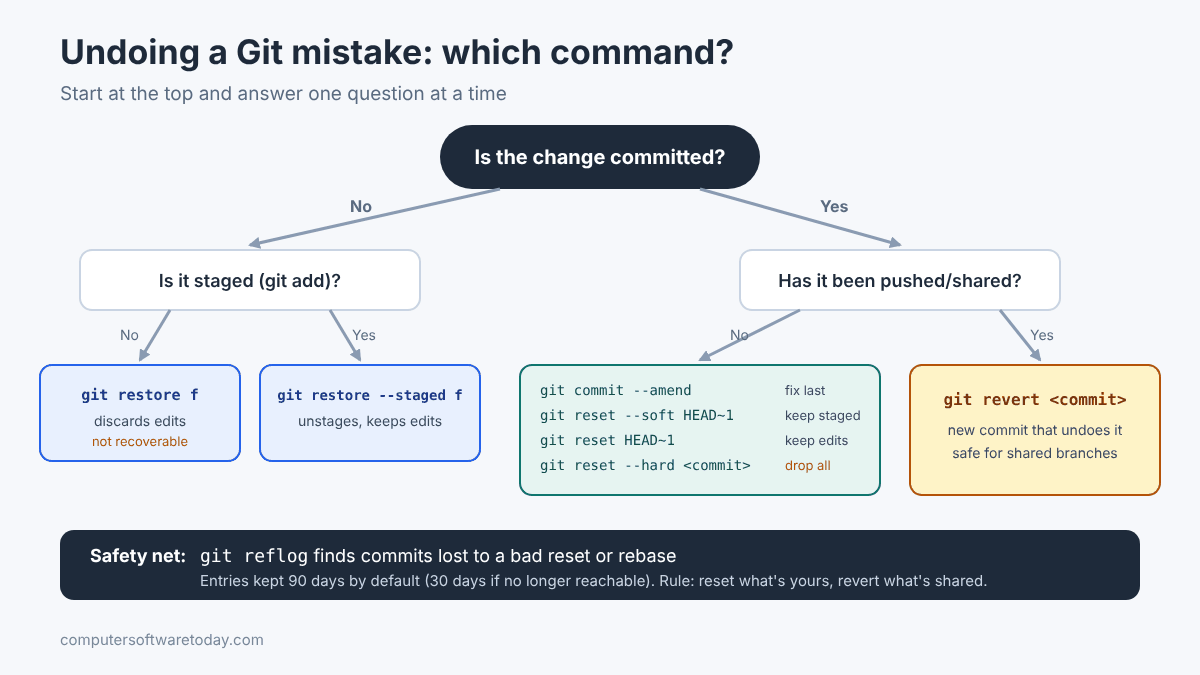
Use restore to throw away uncommitted file changes, reset to move your branch back to an earlier commit, revert to undo a pushed commit safely with a new commit, and reflog to find commits you thought you’d lost.
This is the section people actually need. The table matches each situation with the command to use:
| Situation | Command | Rewrites history? |
|---|---|---|
| Discard unstaged edits to a file | git restore file |
No (but edits are gone) |
| Unstage a file, keep the edits | git restore --staged file |
No |
| Fix the last commit’s message or add a forgotten file | git commit --amend |
Yes, last commit only |
| Undo last commit, keep changes staged | git reset --soft HEAD~1 |
Yes |
| Undo last commit, keep changes unstaged | git reset HEAD~1 |
Yes |
| Throw away commits and changes completely | git reset --hard <commit> |
Yes, destructive |
| Undo a commit that’s already pushed | git revert <commit> |
No, adds a new commit |
| Recover after a bad reset or rebase | git reflog, then reset to the entry |
Restores it |
Some details worth knowing. Per the git restore documentation, plain git restore file restores the working copy from the staging area, and --staged restores the staging area from HEAD. Uncommitted changes you discard are not recoverable, because Git never stored them.
The rule that keeps you out of trouble: reset is for commits only you have; revert is for commits other people have. If you reset a commit that’s already on the shared branch, everyone else’s history no longer matches yours.
And the safety net is git reflog. It records every place HEAD has pointed, including commits no branch references anymore:
git reflog
# a1b2c3d HEAD@{0}: reset: moving to HEAD~3
# 9f8e7d6 HEAD@{1}: commit: Add export endpoint
git reset --hard 9f8e7d6      # back to before the mistake
The git reflog documentation lists default expiry times of 90 days for reflog entries, and 30 days for entries that are no longer reachable from any branch. You have time, but not forever.
Should you use rebase or merge?
Merge preserves history exactly as it happened and is always safe on shared branches. Rebase replays your commits on top of another branch for a cleaner, linear history. Never rebase commits other people have already pulled.
The rule in the Pro Git book’s rebasing chapter is the one to remember: don’t rebase commits that exist outside your repository and that people may have based work on. The book’s suggested middle ground is the one I use. Rebase your local work to tidy it before pushing, and never rebase what you’ve already pushed to a shared branch.
# bring your feature branch up to date with main
git switch feature/invoice-export
git fetch origin
git rebase origin/main
# fix conflicts, then:
git add .
git rebase --continue          # or: git rebase --abort

# tidy the last 4 commits before opening a PR
git rebase -i HEAD~4
If you’ve rebased a branch that only you work on and already pushed it, you’ll need to force-push. Use the safer form, which refuses to push if someone else has pushed to the branch in the meantime:
git push --force-with-leaseAs for which to use, many teams pick one policy and set it in their pull request settings: merge commits, squash merges, or rebase-and-merge. Consistency matters more than which one you choose. For small projects I like squash merges, because main then reads like a changelog.
What are some lesser-known Git commands worth learning?
Once the basics are second nature, cherry-pick, bisect, tag, worktree and clean solve specific problems that otherwise eat an afternoon.
git cherry-pick <commit>copies one commit onto your current branch. It’s handy for moving a hotfix to a release branch.git bisect start, thengit bisect badandgit bisect good <commit>, does a binary search through history to find the commit that introduced a bug. It feels like magic the first time.git tag -a v1.4.0 -m "Release 1.4.0"marks a release. Push it withgit push origin v1.4.0.git worktree add ../hotfix mainchecks out a second branch in a separate folder, so you can fix something urgent without stashing.git clean -npreviews which untracked files would be deleted.-factually deletes them. Always run-nfirst.git fetch --pruneremoves remote-tracking branches that were deleted on the server.
Git cheat sheet: the commands in one table
Here’s every command from this guide in one place, grouped by job, so you can bookmark this section and come back to it.
| Task | Command |
|---|---|
| See what changed | git status, git diff, git diff --staged |
| Stage and commit | git add -p, git commit -m "msg" |
| Sync with remote | git fetch, git pull, git push |
| History | git log --oneline --graph, git show, git blame |
| Branches | git switch -c name, git switch name, git branch -d name |
| Combine work | git merge branch, git rebase origin/main |
| Set aside work | git stash push -m "msg", git stash pop |
| Discard file changes | git restore file, git restore --staged file |
| Fix last commit | git commit --amend |
| Undo local commits | git reset --soft HEAD~1, git reset --hard <commit> |
| Undo pushed commits | git revert <commit> |
| Recover lost work | git reflog |
| Find a bad commit | git bisect |
| Release marker | git tag -a v1.0.0 |
Bottom line
Learn the daily loop until you don’t think about it. Then learn the undo commands well, because that’s where confidence comes from. Remember two rules: revert what’s shared, reset what’s yours. And before you delete a repository in frustration, run git reflog. Your work is almost certainly still in there.
FAQ
What’s the difference between git fetch and git pull?
git fetch downloads new commits from the remote but doesn’t change your branch. git pull does a fetch and then merges (or rebases, depending on your settings) those commits into your current branch.
What’s the difference between git reset and git revert?
git reset moves your branch pointer back, removing commits from the branch’s history, so use it only on commits you haven’t shared. git revert creates a new commit that undoes an earlier one, which is safe on shared branches.
Should I use git switch or git checkout?
Use git switch for changing branches and git restore for files. Both were added in Git 2.23 to split up git checkout’s many jobs. git checkout still works, but the newer commands are harder to misuse.
How do I recover a commit after git reset –hard?
Run git reflog, find the entry from just before the reset, and run git reset –hard with that commit hash. Reflog entries are kept for 90 days by default, or 30 days for commits that are no longer reachable.
Is it safe to force push?
Only on branches nobody else is working on. Use git push –force-with-lease rather than –force, because it refuses to overwrite commits someone else pushed after your last fetch.
How do I undo git add?
Run git restore –staged followed by the file name. The file stays modified in your working folder; it just won’t be included in the next commit.
Featured image: Photo by Bernd Dittrich on Unsplash.
About The Author

