
Passkeys Explained: How They Work and Why They Beat Passwords
A passkey is a sign-in credential that replaces your password with a cryptographic key pair. Your device keeps the private key and unlocks it with your fingerprint, face or PIN; the website only stores the public key. Passkeys can’t be phished or reused, they sync across devices, and Google, Microsoft, Apple, Amazon and PayPal already support them.
What is a passkey?
A passkey is a FIDO credential: a public/private key pair created for one specific website. You prove who you are by unlocking it on your device, and the device proves to the site that it holds the matching private key.
From the user’s side it feels like unlocking your phone. You click “Sign in with a passkey,” touch the fingerprint sensor or look at the camera, and you’re in. No password to remember, no six-digit code to copy from a text message.
Under the hood it’s the same public-key cryptography we’ve used for TLS and SSH for decades, packaged so normal people never see a key file. The standard behind it is WebAuthn from the W3C, paired with the FIDO Alliance’s CTAP protocol for talking to authenticators. WebAuthn Level 3 became a W3C Recommendation on August 25, 2026, so the spec is now on solid ground.
Adoption is no longer theoretical. The FIDO Alliance’s October 2026 Passkey Index estimates about 7 billion passkeys in use and reports that more than a third of successful sign-ins at participating services now use one.
How do passkeys work?
When you register, your device creates a new key pair and sends the public key to the site. When you sign in, the site sends a random challenge, your device signs it with the private key after you unlock it, and the site verifies the signature.
Here’s the flow in plain steps:
- Registration. The site (the “relying party”) sends your browser a challenge, its domain, and a user ID.
- Key creation. Your authenticator asks you to verify with biometrics or a PIN, then generates a key pair scoped to that domain. The private key never leaves the authenticator.
- Storage. The site stores the public key and a credential ID. That’s it. No password hash.
- Sign-in. The site sends a fresh challenge. You unlock the authenticator, it signs the challenge plus the origin it was asked from, and the server checks the signature with the stored public key.
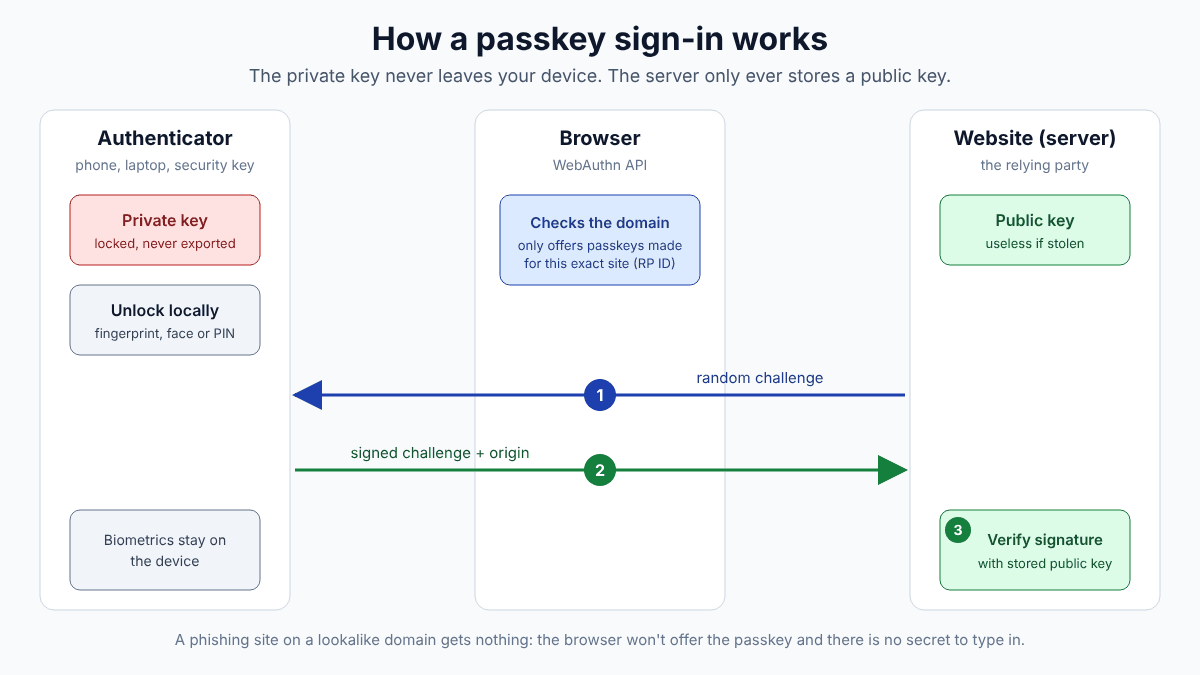
Two details make this much stronger than a password. First, there’s no shared secret on the server, so a database breach gives attackers a pile of public keys, which are useless to them. Second, as MDN explains, the passkey is bound to the site’s domain (the RP ID). A lookalike phishing domain simply can’t ask for it. Your browser won’t offer it, and you can’t be talked into typing it in, because there’s nothing to type.
Your fingerprint or face never goes to the website either. Biometrics only unlock the key locally.
What is the difference between platform and roaming authenticators?
A platform authenticator is built into your device, like Windows Hello, Touch ID or an Android phone’s screen lock. A roaming authenticator is a separate device you carry, such as a USB or NFC security key.
| Platform authenticator | Roaming authenticator | |
|---|---|---|
| Examples | Windows Hello, Apple Touch ID / Face ID, Android screen lock | YubiKey and other FIDO2 security keys; a phone used via QR code |
| How you unlock it | Biometric or device PIN | Touch plus PIN on the key, or the phone’s own unlock |
| Passkey usually | Synced through a credential manager | Device-bound, stays on that key |
| Lose the device | Recover from your synced account | That passkey is gone; you need a backup |
| Best for | Most consumers and everyday accounts | Admins, high-value accounts, shared or locked-down machines |
There’s also a middle option that many people don’t know about: signing in on a computer using a passkey stored on your phone. The browser shows a QR code, you scan it, the phone and computer confirm they’re physically near each other over Bluetooth, and the phone does the signing. It’s handy on a machine that isn’t yours.
How do synced passkeys work across devices?
Synced passkeys are stored in a credential manager such as Apple Passwords and iCloud Keychain, Google Password Manager or a third-party manager, which backs them up end-to-end encrypted so they appear on your other devices.
This was the change that made passkeys practical. Early FIDO credentials lived on one security key, and if you lost it you were locked out. Synced passkeys solve that by treating the credential manager as the backup. Set one up on your iPhone and it shows up on your Mac. Set one up in Chrome on Android and it’s available in Chrome on your Windows desktop.
The weak spot used to be moving between ecosystems. That’s improving. The FIDO Alliance has published a standard format for exporting and importing credentials, and Apple added passkey import and export in iOS 26, with transfers that are end-to-end encrypted and require Face ID or Touch ID. Third-party managers like 1Password and Bitwarden also store passkeys, which is what I’d recommend if you live in more than one ecosystem.
For developers this matters in one specific way: a synced passkey is “backup eligible,” and WebAuthn reports that flag. You can use it to decide whether to nudge a user to register a second passkey.
Which major services support passkeys?
Most of the big consumer platforms now do, including Google, Microsoft, Apple, Amazon, PayPal, WhatsApp, TikTok and Shopify. Several have made passkeys the default sign-in rather than an optional extra.
- Google made passkeys the default sign-in option for personal Google accounts in October 2023.
- Microsoft made all new Microsoft accounts passwordless by default in May 2025. Existing users can delete their password entirely.
- Apple supports passkeys across iOS, iPadOS and macOS through Apple Passwords and iCloud Keychain.
- Amazon, PayPal, JPMorgan Chase, CVS, WhatsApp, TikTok and Shopify are among the 15 services that contributed data to FIDO’s 2026 Passkey Index, alongside Google and Microsoft.
Plenty of developer-facing services support them too; GitHub has offered passkey sign-in for years. Support changes quickly, so check the account security settings for any service you care about. If you see “passkey” or “security key” there, set one up.
The FIDO data also says passkey sign-ins succeed more often than passwords plus traditional MFA and are close to three times faster. That’s the part that sells it to product managers, not the security.
How do developers add passkeys to a website?
You add passkeys with the browser’s WebAuthn API on the front end and a server-side library that generates challenges and verifies responses. Don’t write the cryptographic verification yourself.
The client side is two calls: navigator.credentials.create() to register and navigator.credentials.get() to sign in. Google’s web.dev registration guide recommends options like these, built on the server and sent to the browser:
// Options from your server, decoded for the browser
const options = PublicKeyCredential.parseCreationOptionsFromJSON(serverJson);
// options.publicKey includes:
//   rp: { id: "example.com", name: "Example" }
//   user: { id: <random opaque bytes, no email>, name: "gene@example.com", displayName: "Gene" }
//   challenge: <random bytes from server>
//   pubKeyCredParams: [{ type: "public-key", alg: -7 }, { type: "public-key", alg: -257 }]
//   authenticatorSelection: { residentKey: "required", userVerification: "preferred" }
//   excludeCredentials: [ ...this user's existing credential IDs ]

const credential = await navigator.credentials.create(options);
await fetch("/passkeys/register", { method: "POST", body: JSON.stringify(credential) });
For sign-in, the nicest UX is “conditional UI,” where passkeys show up in the browser’s autofill dropdown on your normal username field. You add autocomplete="username webauthn" to the input and call navigator.credentials.get() with mediation: "conditional" when the page loads. Users with a passkey pick it; everyone else types a password as usual.
On the server, use a maintained library:
- ASP.NET Core: .NET 10 added passkey support to ASP.NET Core Identity, with methods like
MakePasskeyCreationOptionsAsync,PerformPasskeyAttestationAsyncandPasskeySignInAsync. The Microsoft Learn docs note it’s built into the Blazor Web App template and isn’t meant as a general-purpose WebAuthn library; for that, the community fido2-net-lib project is the usual choice. - Java: Spring Security has built-in passkey support, and Yubico’s java-webauthn-server is a long-standing option.
- Node: SimpleWebAuthn is widely used.
Store the credential ID, public key, user ID, the authenticator’s AAGUID (so you can show “iCloud Keychain” or “Google Password Manager” in the account page), creation and last-used dates, and the backup-eligible flag.
What should you watch out for when implementing passkeys?
The common mistakes are getting the RP ID wrong, skipping HTTPS, forcing users through a password first, and not planning for account recovery when someone loses every device.
A short checklist drawn from the vendor docs:
- Pick the RP ID deliberately. Use your registrable domain (for example
example.com) sowwwandloginsubdomains both work. In ASP.NET Core, setServerDomainexplicitly instead of letting the Host header decide. - HTTPS everywhere. WebAuthn won’t run on plain HTTP outside localhost. If you already use Let’s Encrypt via win-acme or certbot, you’re covered.
- Verify the user before adding a passkey. web.dev recommends a fresh verification step (email or phone), not just an old session.
- Offer passkeys first. FIDO’s report notes that some services still offer a password or code before the passkey, even to users who have one, and that keeps people on passwords.
- Let people register more than one. Use
excludeCredentialsso the second passkey lands on a different authenticator. - Send a notification when a passkey is added, the same as you would for a password change.
What are the limitations of passkeys?
Passkeys still depend on account recovery, which is often an email link or support process that attackers can target. Cross-ecosystem moves, shared accounts and older devices also remain rough edges.
- Recovery is the new weak point. If losing every device means “we’ll email you a reset link,” then your security is still only as good as that inbox.
- Ecosystem friction. Import and export are arriving, but not every manager supports them yet. Someone with an iPhone and a Windows PC without a cross-platform manager will hit the QR-code flow regularly.
- Shared accounts. Families and small offices that share a login need passkey sharing features, which exist in some managers but not everywhere.
- Locked-down or old machines. Older operating systems and some kiosk setups don’t support platform passkeys. Security keys fill that gap.
- Attestation is mostly off. For consumer sites you generally can’t, and shouldn’t, verify exactly what hardware created the key. ASP.NET Core Identity, for example, doesn’t validate attestation by default. Enterprises that need certified hardware have to do extra work.
Bottom line
I’ve been around long enough to watch “the end of passwords” get announced several times. This time the plumbing is actually in place: the spec is a full W3C Recommendation, every major OS ships an authenticator, and the biggest consumer services have made passkeys the default. For your own accounts, turn them on wherever you see the option and keep a security key or second device as backup. For your own sites, start by offering passkeys alongside passwords with conditional UI, use a real library, and spend most of your design time on recovery. That’s where the remaining attacks will go.
FAQ
Are passkeys safer than passwords with two-factor authentication?
Generally yes. Passkeys are phishing-resistant because they’re bound to the real website’s domain, and the server holds no secret worth stealing. SMS codes and app-based codes can still be phished by a convincing fake login page.
What happens if I lose my phone?
If your passkeys are synced through Apple, Google or a password manager, they’re restored when you sign in to that account on a new device. Device-bound passkeys on a lost security key are gone, which is why you should register a backup.
Does the website get my fingerprint or face data?
No. Biometrics only unlock the private key on your device. The website receives a signature and never sees your fingerprint, face scan or device PIN.
Can I use a passkey on a computer that isn’t mine?
Yes. Choose the option to use a passkey from another device, scan the QR code with your phone, and approve the sign-in there. The phone must be physically nearby, confirmed over Bluetooth.
Do I need a special library to add passkeys to my site?
You should use one. The browser side is the built-in WebAuthn API, but server-side verification involves parsing and checking signed binary data. ASP.NET Core Identity in .NET 10, Spring Security and SimpleWebAuthn handle that for you.
Featured image: Photo by Priscilla Du Preez on Unsplash.
About The Author

